
Getting Started with Web IDE on Mobile
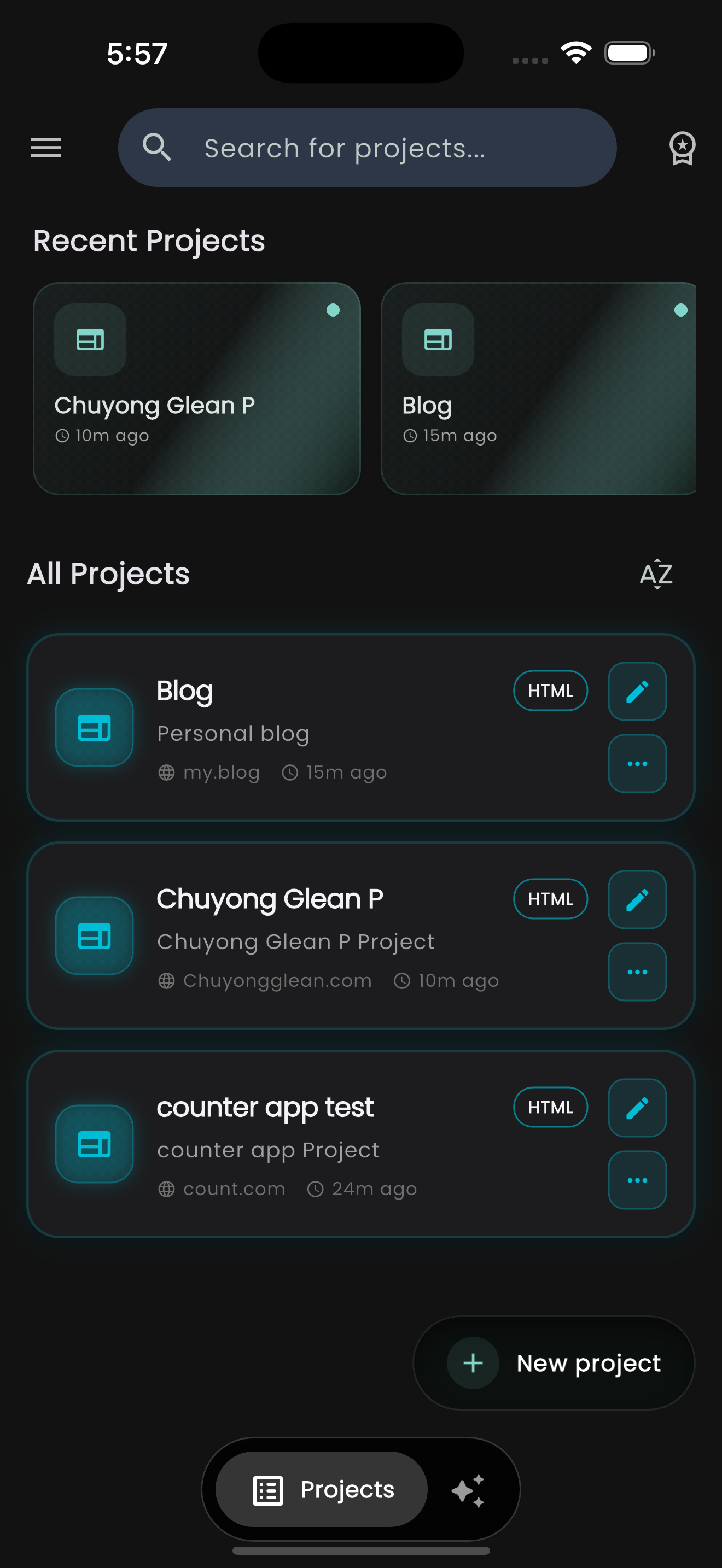
Coding on a mobile device used to be a compromise. You'd trade features for portability. With Web IDE, that trade-off is gone. Today, we'll walk through setting up your first project and exploring the dashboard.
The Home Screen
When you first launch Web IDE, you're greeted with a clean, focused workspace. The home screen (shown above) gives you quick access to your recent projects. The card-based layout ensures that even on smaller screens, your work is easy to find.
Creating a Project
To start coding, simply tap the Create Project button. You'll be presented with a template selection screen featuring fully compiled project bases.
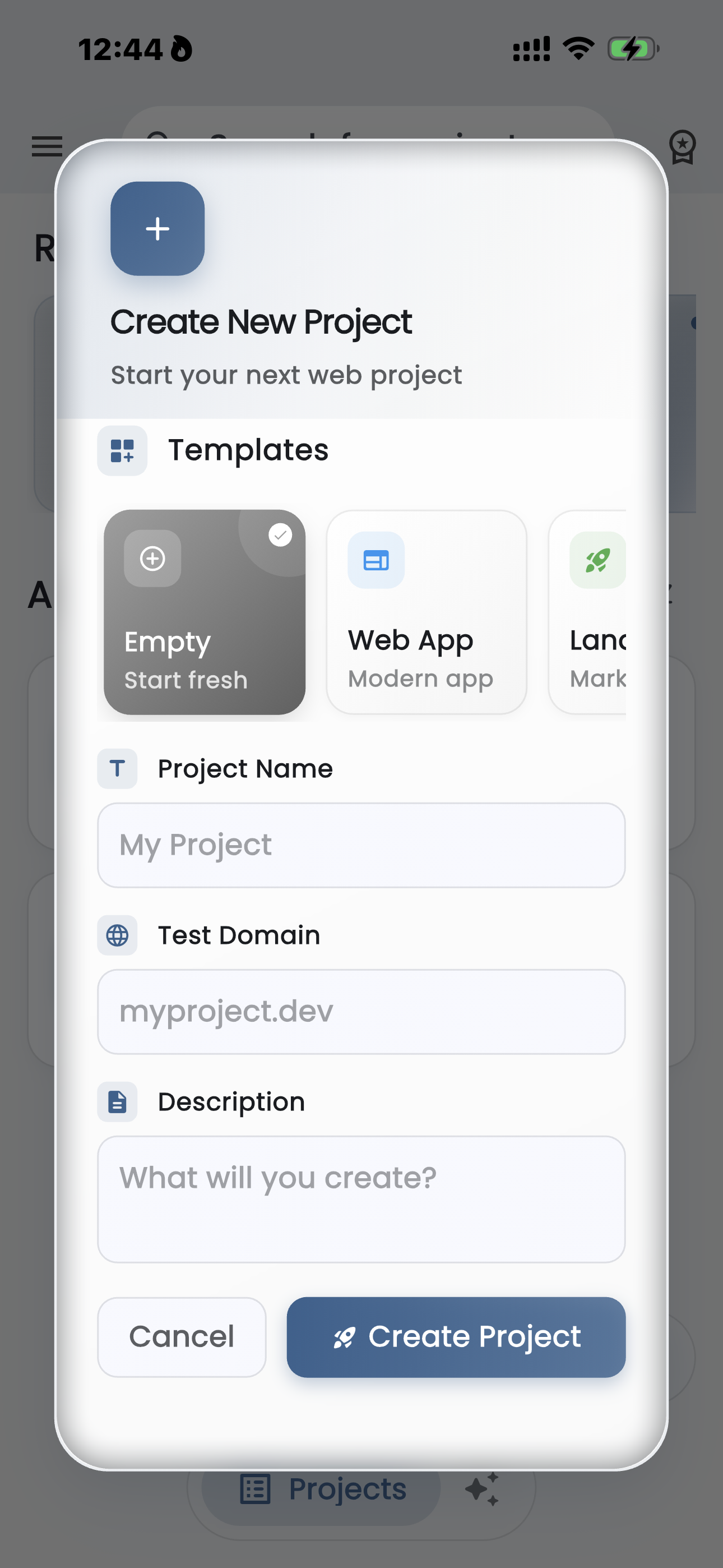
Choose from templates like:
- Empty: Start fresh with a basic structure.
- Web App: A modern layout suitable for applications.
- Landing Page: A pre-configured marketing page structure.
Note: You won't see individual files (index.html, etc.) at this stage. The app generates the full project structure for you automatically once you tap Create.
Why use Web IDE?
Unlike other editors, Web IDE runs a local server environment. This means relative paths, fetch requests, and local assets work exactly as they would on a desktop computer.